









- One sided adhesive tapes
- Packing tapes
- Coloured - marking tapes
- Electrical tapes
- Office tapes, adhesive tapes
- Slick surface tapes
- Metal adhesive tapes
- Masking crepe tape
- Masking special tapes
- Surface protection tapes
- Foam - sealing tapes
- Anti-slip tapes
- Self-adhesive rubber cut-outs
- Special tapes
- Textile tapes
- Warning and reflective tapes
- Double-sided adhesive tapes
- Electrical insulation material
- Glues
- Flexible stoppers, bumpers
- Velcro straps
- Primers - activators - cleaners
- Accessories for adhesives, applicators
How do I connect a printer to a PC?
The digital age is changing many things. We read and write much more than we did in the recent past, but at the same time it is true that all of this is happening in a completely different way. We read from the screens of computers, tablets, or mobile phones; we write on keyboards. And of course, we regularly print documents. Printers therefore continue to be a great helper, and nothing indicates that this fact should change in the near future. Printers can only serve us, however, when they are properly installed and connected. And that is precisely where the stumbling block often lies. How do you connect a printer to a PC so that everything works as it should?
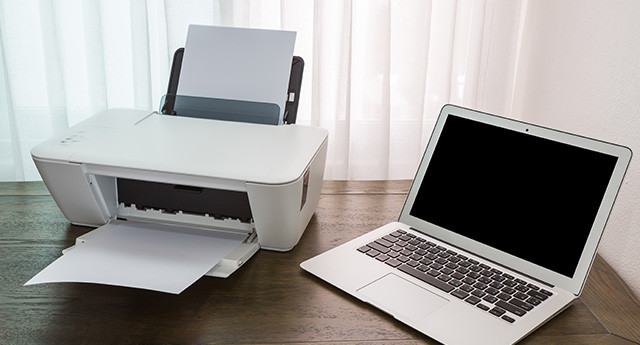
There are several ways to connect a printer to a PC. We can mention USB connection via cable, LAN or Wi-Fi connection, and we also cannot overlook direct, i.e. DIRECT Wi-Fi connection or Bluetooth. Connecting a computer and printer via a data network offers the advantage of faster printing and the ability to use the printer’s services for multiple users, with the option to print from mobile smart devices. However, in practice, the final option for connecting the printer to a PC is determined by the printer's configuration.
Let’s get started with installing wireless printers in Windows 10
When installing printers on desktop computers and laptops running the Windows 10 operating system, you basically have two different options for how to do it.
You can either go through the user interface, or do it through the classic Control Panel.In the first case, click the Windows symbol located in the far bottom-left corner of the screen or the same symbol on the keyboard (on the left next to the spacebar). Next, select Settings> Devices> Printers & scanners. Select Add a printer or scanner and wait for nearby printers to be found. Then select the printer you want to use and then click Add Device.
In the second case, just as we described above, click the same Windows symbol and then continue by clicking Control Panel > Devices and Printers >, and then in the displayed window, launch the Add Printer option.
Connecting the printer via USB cable
Connecting the printer to a PC via a USB interface is one of the most commonly used methods. The reason is prosaic. Every printer and, of course, every computer has special connectors (designated A - B) that allow them to be directly connected with a USB cable.
For everything to work as it should, of course, simply connecting the printer and the computer with a USB cable will not be enough. Software installation will be required. The procedure may vary slightly, but in general it is very similar. To install the software, use the included CD that came with the printer package, or download it from the manufacturer's website. After inserting the CD, start the installation and wait until the installation program prompts you to connect the printer. After this step, complete the installation according to the displayed instructions.
Connecting the printer via Bluetooth and Wi-Fi DIRECT
Securing printers and eliminating security risks is currently probably one of the biggest challenges that both small businesses and large companies must address. Protecting sensitive data is also a priority for ordinary users. Connecting the printer via Bluetooth or Wi-Fi DIRECT is, among other things, a suitable alternative connection method even in cases where a print job is to be sent from a third-party device that you do not want to grant full access to the network.
Wi-Fi DIRECT (also known as Wi-Fi P2P) is a standard that enables easy connection of two or more devices without the need for a wireless access point. One of the advantages of Wi-Fi DIRECT is higher communication speed than Bluetooth. It is also necessary to mention the possibility of connecting devices from different manufacturers.
Almost all mobile phones, tablets, and laptops are currently equipped with Bluetooth technology. As we have already indicated above, however, Bluetooth transfer speeds are relatively low, which is why this technology has proven particularly effective when connecting to portable devices intended for printing photographs or receipts.
The procedure for connecting a printer to a PC using Bluetooth or Wi-Fi Direct is individual and depends on the specific device, so it cannot be generalized. The best thing to do, then, is to follow the manual provided by the device manufacturer when connecting it.
CDRmarket advises: The listed scenarios for possible printer connection to a PC are intended for less experienced users. Users experienced in the subject can also manage with several other methods.
We have previously devoted a separate article to the importance of printer security. If you are interested in this current topic, read printer security should not be underestimated in companies.